
Lovable App Builder Guide: Editor, Modes and Prompt to App
Lovable's app builder is a chat panel, a live preview and the controls around them. This guide walks through each part with screenshots from our own sessions, quotes what Lovable's documentation says each one does, and shows the path a structured prompt takes from the chat box to a running app.
Updated
What are the parts of the Lovable app builder?
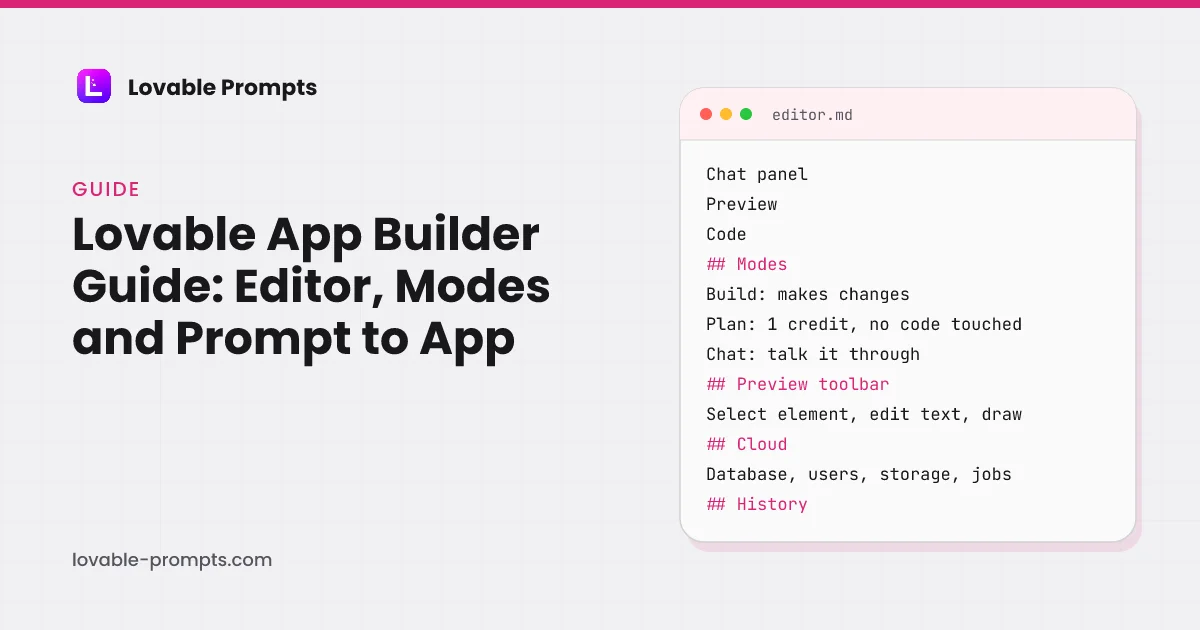
Two main areas and a ring of controls. Lovable's editor documentation (read on 26 September 2026) describes the chat panel as “where you tell Lovable what to build and follow its progress” and the preview as “a live, interactive version of your app that updates as Lovable works”. Around them: Code, “a full code editor where you can read your project's code, edit it directly on paid plans, and download it”; History, to “browse past versions, restore an earlier one, and manage bookmarks”; Publish, to “deploy your app to its live URL”; and Cloud, “your app's backend in one place: the database and its records, user accounts, file storage, scheduled jobs, edge functions, secrets, logs, and usage”.
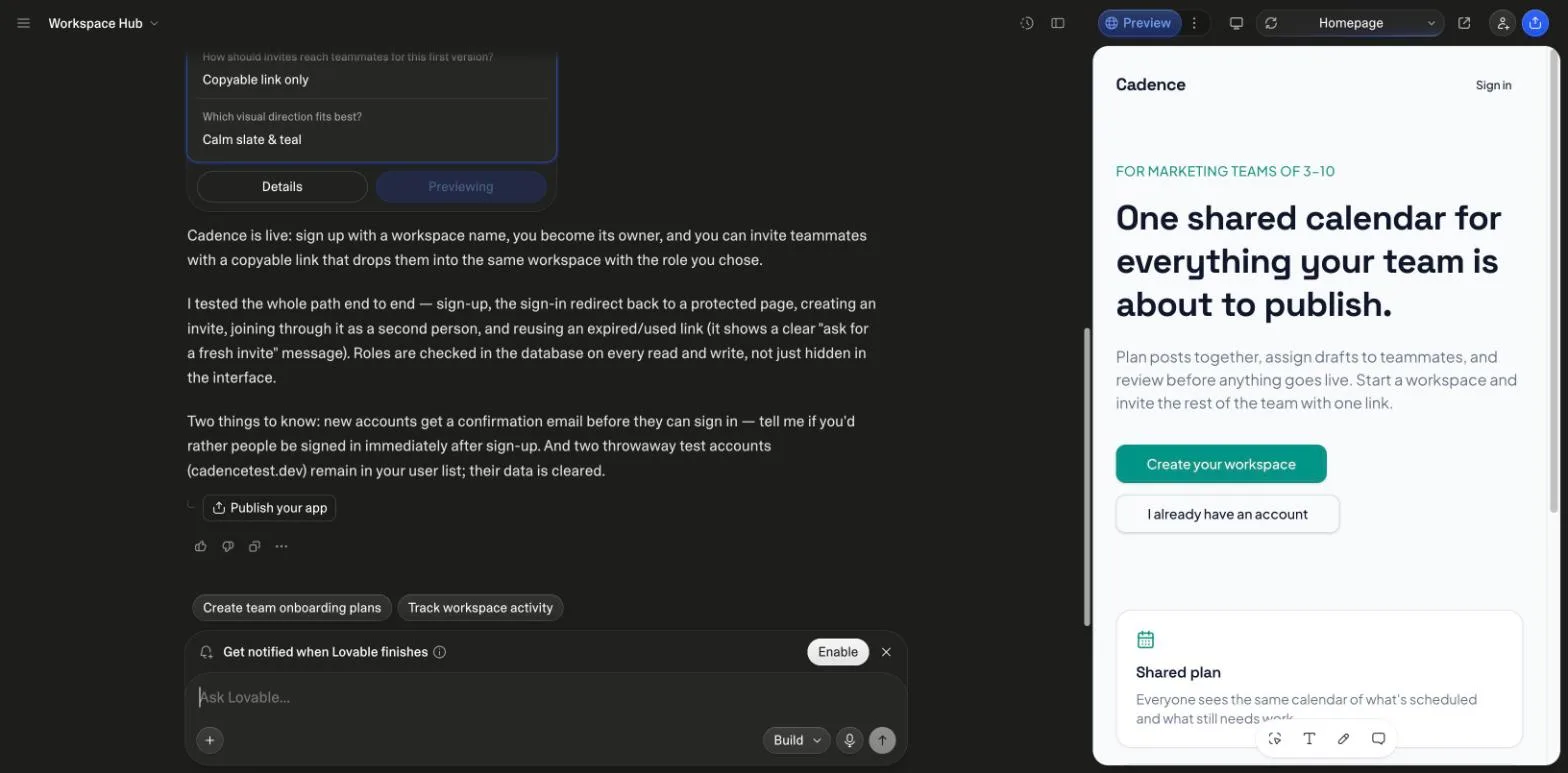
The layout toggle at the top left hides the chat panel so the preview takes the full width, which is the view the preview toolbar is built for. The screenshots below walk through each area in the order a first build meets them.
Which mode should you use: Build, Plan or Chat?
The mode picker next to the chat input decides whether a message changes code, plans it, or only talks about it, and each is priced differently. The descriptions and prices below are quoted from Lovable's project chat, Plan mode and credits and usage documentation, all read on 26 September 2026.
| Build | Plan | Chat | |
|---|---|---|---|
| What it does | “Lovable makes changes directly in your project. This is the default, and the right choice for most requests.” | “Lovable investigates and plans without touching your code. Use it to think through a bigger feature, debug an issue safely, or compare approaches before building.” | “Lovable discusses the app you have open without changing its code. Use it to ask how something works, explore an idea, or decide what to change.” |
| Touches code | Yes | No, until you approve the plan and it switches to Build | No |
| Price | Usage-based: “small, focused edits usually cost less than larger generations, multi-step changes, or requests that require more codebase exploration” | “1 credit, plus the cost of any subagent research Lovable runs while planning” | “Priced on the work it needs, typically a fraction of a credit, and your workspace's daily chat allowance covers it first” |
| When the prompts here use it | The structured prompt itself, with its closing question line | After two or three failed fixes, or to scope a large feature | To ask how something was built before changing it |
The practical rule: paste the structured prompt in Build mode and let its Before Building section do the planning, because Lovable will ask its questions before it spends a Build credit on the wrong thing. Switch to Plan mode when a fix keeps missing, which is also what Lovable's idea-to-app guide recommends.
How does a prompt become an app in the chat panel?
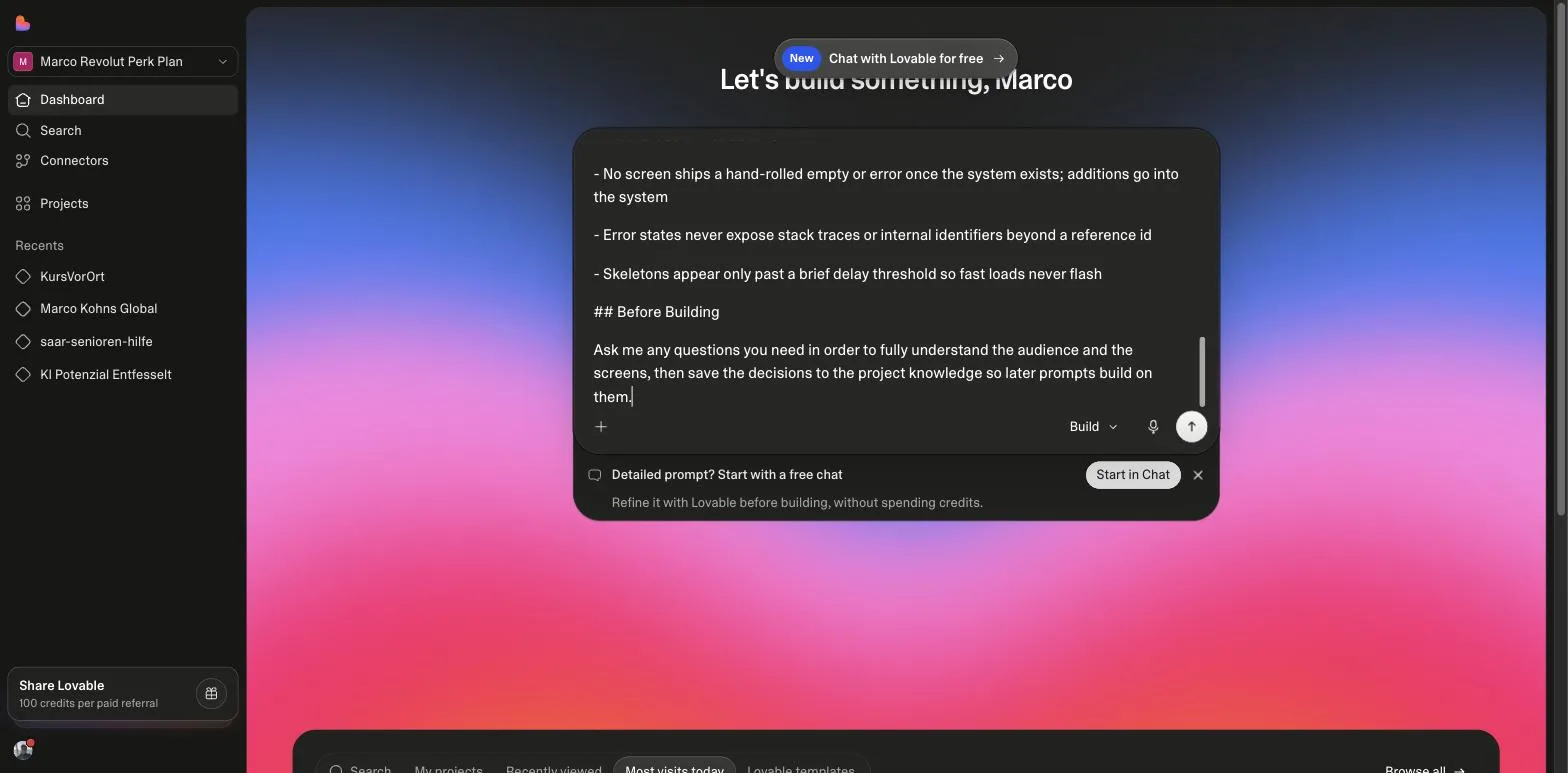
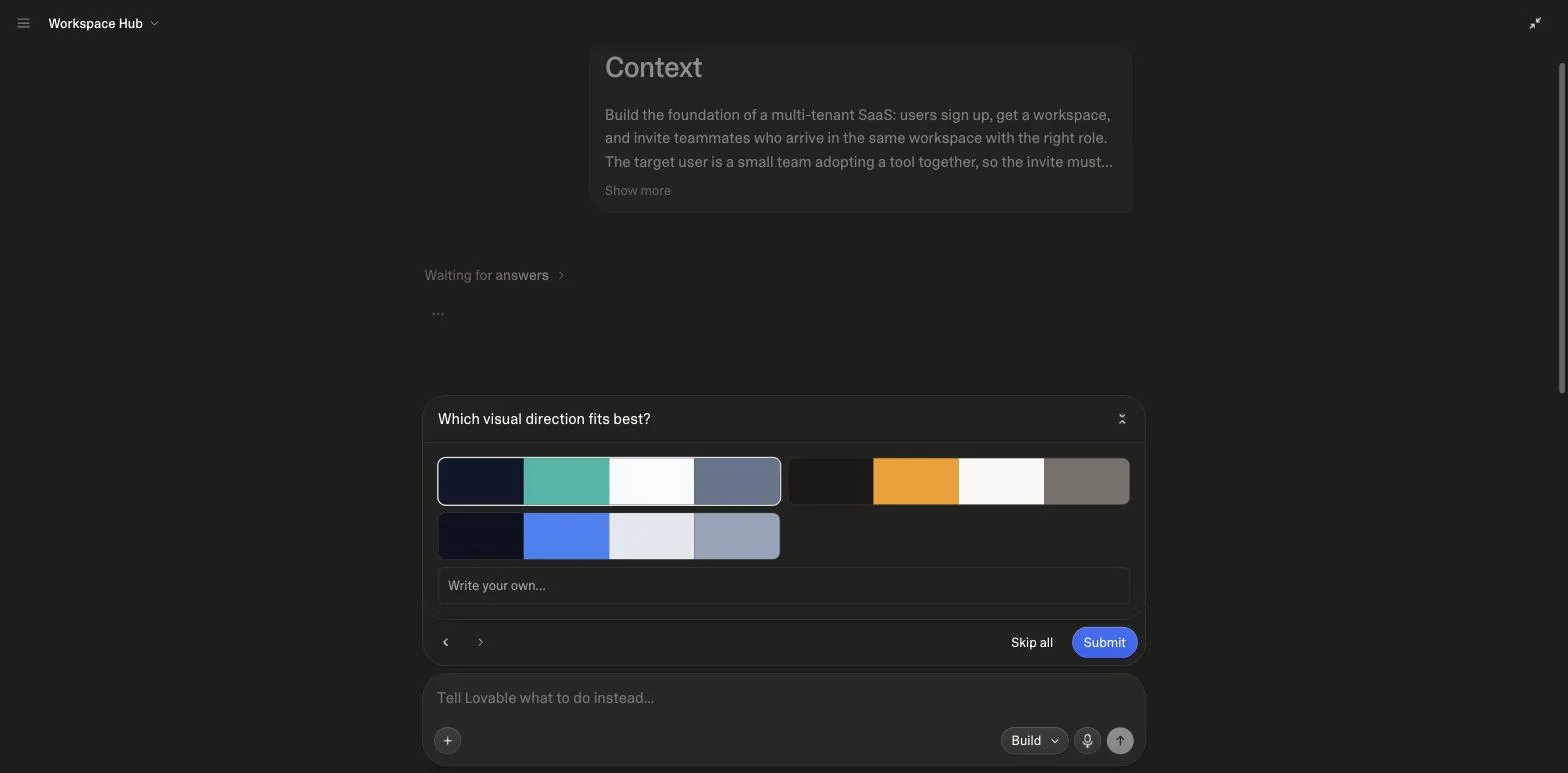
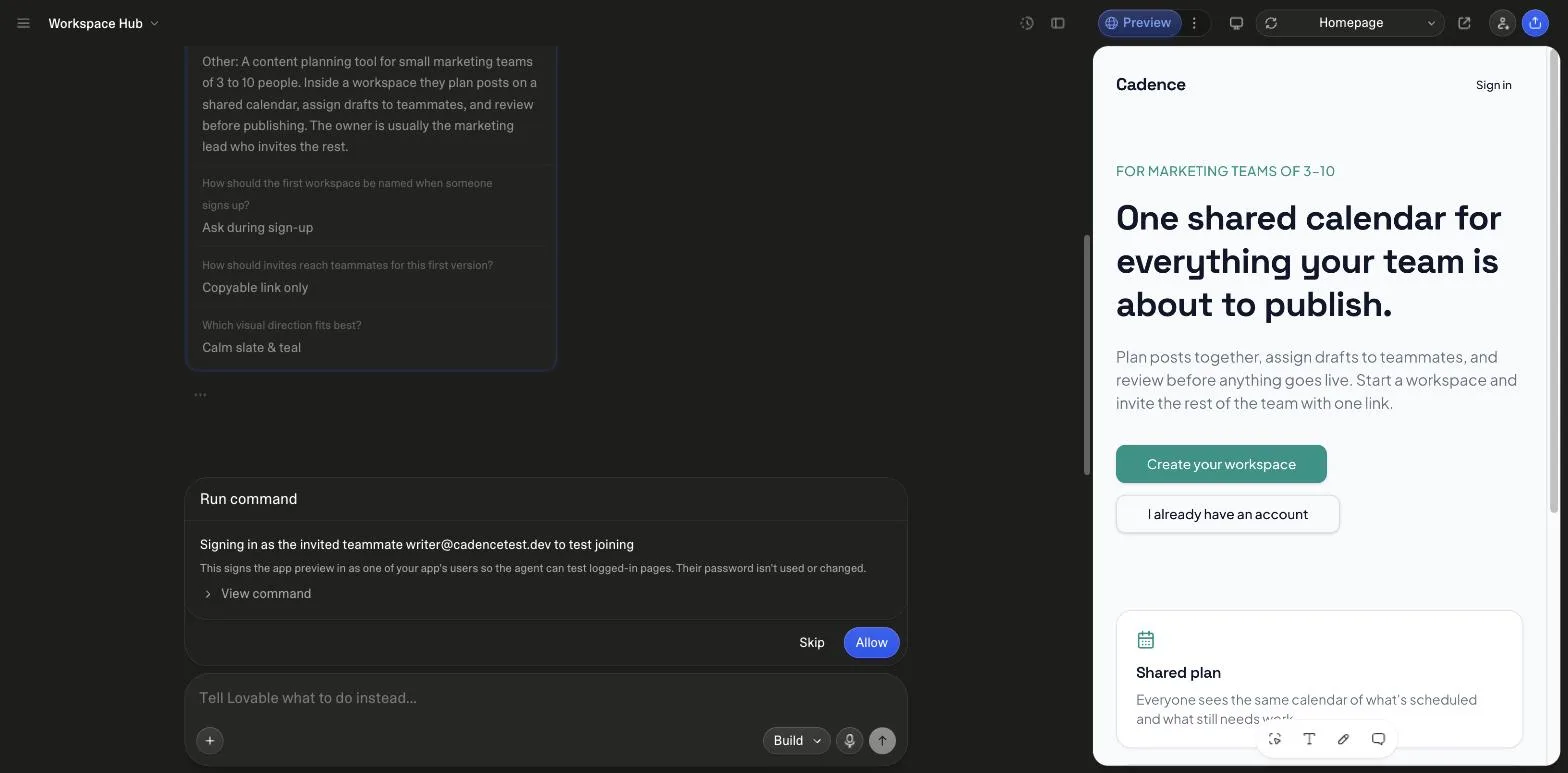
The chat docs describe the mechanics: the plus button opens a Chat actions menu with Project, Help and Add context groups; you can attach “images, PDF, Word, Excel, and PowerPoint files, and even audio recordings” or reference a file from the code by typing @; and under “Answer Lovable's questions” the docs cover the question cards that appear when Lovable needs context. On our runs those cards are the first thing a library prompt produces, because every prompt ends by asking for them.
- Paste in Build: detailed-prompt notice
- Answer cards: 2 to 4 questions
- Cloud enabled: data and sign-in
- Build and test: asks to run checks
- Report, publish: caveats included
Sequence observed on the states-system and SaaS runs in Marco's workspace on 26 September 2026, matching the steps in Lovable's project chat documentation.
What does the preview toolbar change without a prompt?
Four things, per Lovable's preview toolbar documentation: select elements to “point Lovable at one or more elements and request a change in plain language”, edit text inline to “fix a typo or change wording directly”, draw an annotation to “show a layout or spatial change that's hard to describe”, and add a comment to “leave feedback for yourself or a teammate”. The docs note the toolbar replaced the older visual edits feature.
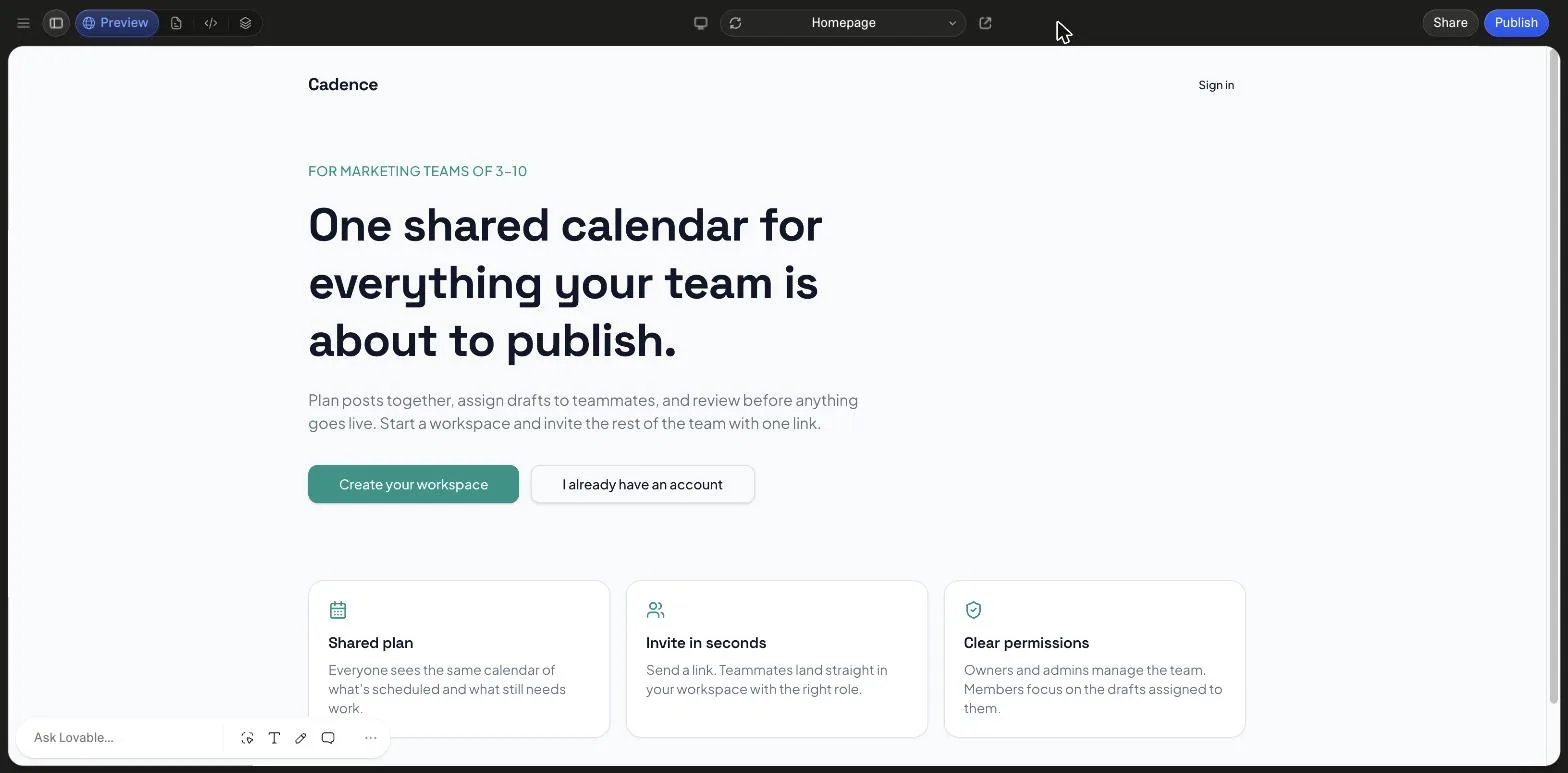
The toolbar is the cheapest way to make the small changes a first build always needs, because a typo fixed inline costs no Build round, and a selected element sends Lovable a precise target instead of a paragraph describing where the card is.
When should you open the code editor?
When you want to read what was built, reference an exact file in the chat, or make a change that is cheaper by hand. Lovable's code editor docs say the editor lets you “browse and search your app's source code, make manual edits, reference exact lines in the project chat, and download your codebase”; editing is read-only on the free plan and open on paid plans, manual edits do not consume credits, they save immediately into version history, and nothing reviews them before they apply.
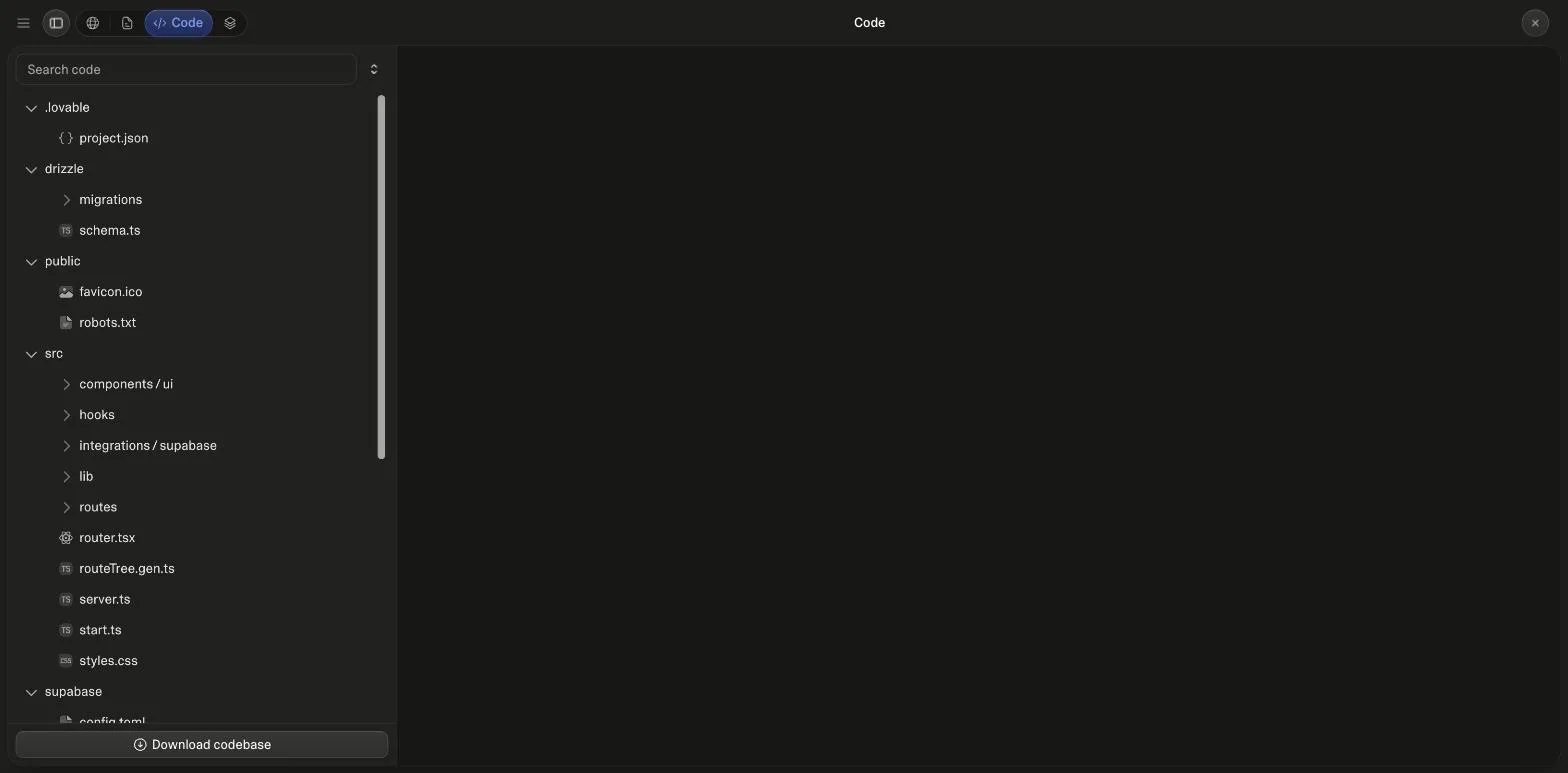
The tree is worth a look after any first build, because it shows what the prompt produced beneath the preview: here a schema file, migrations and a server entry, which is the difference between a page and an app. Reading the model before the second prompt is the cheapest review there is.
What lives behind the More menu?
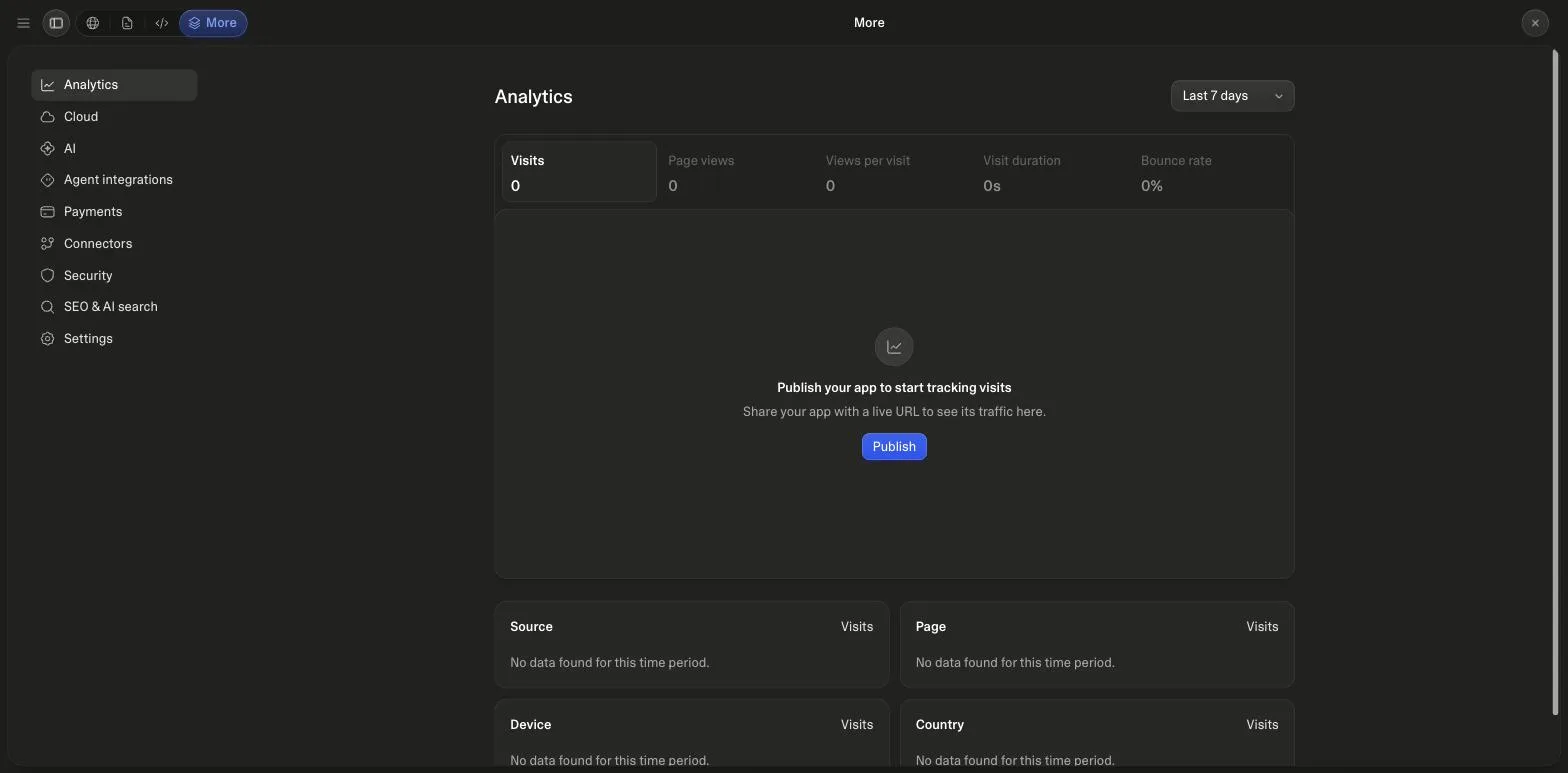
The rest of the product: Analytics, Cloud, AI, Agent integrations, Payments, Connectors, Security, SEO and AI search, and Settings, in that order on 26 September 2026. Cloud is the backend panel the editor docs describe; Security holds the scans that run when you open the publish dialog; SEO and AI search is the review that checks metadata and the sitemap; Payments and Agent integrations are covered on the SaaS and API prompt pages.
How do you recover when a build goes wrong?
Three tools, in order of cost. The chat docs list “Edit a message and try again”, which re-runs a corrected prompt from that point. Version history records that “every change Lovable makes to your project creates a version automatically”; you can preview any version and revert, with two limits the docs state plainly: “reverting restores your project's code only”, not database data, and “credits pay for the work Lovable performs, so messages you later revert still count”. And Plan mode, for a bug that survives two or three Build attempts.
That first limit is why the backend prompts on this site keep a recovery path in the schema, a soft-delete table and an audit log, rather than relying on history: history rolls back the code that deleted the rows, not the rows. The common mistakes guide prices the usual failures in correction rounds.
What did our runs cost, start to finish?
Three library prompts, three fresh projects, each read from the credits page before and after. The landing page fits inside a free day; the two system-level builds, which provisioned Cloud and in one case tested their own invite flow, each cost about ten credits. The per-run screenshots are on the category pages.
| Category | credits |
|---|---|
| Landing page + email opt-in | 1.8 (no question line yet) |
| Empty states and skeletons | 9.5 (2 questions first) |
| SaaS MVP with user auth | 10.4 (4 questions first) |
Read from the Lovable workspace credits page on each run's date, Cloud provisioning included. Data in src/data/runs.ts.
That is the whole loop: prompt in the chat panel, answer the cards, check the preview, scope the next request to what you saw. Take a prompt from the library and run it end to end once; the workflow makes more sense after one full build than after any guide, and the prompting guide covers what to type into it.
Sources
All checked on 26 September 2026.
- Lovable docs: Find your way around the Lovable editor
- Lovable docs: Work with Lovable in the project chat
- Lovable docs: Plan a change in Plan mode
- Lovable docs: View and edit your project's code
- Lovable docs: Edit from the preview
- Lovable docs: Revert and restore your project with version history
- Lovable docs: Credits and usage
What changed
- 26 September 2026: rebuilt as an interface tour with six own screenshots from the SaaS run (editor, preview toolbar, code view, More menu, question card, permission prompt), every area quoted from Lovable's docs, a modes table with prices, a prompt-to-app flow, a credits chart, six FAQs, hero and sources; the page moved from a client component to a server-rendered one.
- 31 July 2026: first own editor screenshot added.
Frequently asked
What are the main parts of the Lovable app builder?↓
What is the difference between Build, Plan and Chat mode?↓
Can I edit the code directly?↓
Does reverting to an earlier version refund the credits?↓
How many credits does one build take?↓
Where are the screenshots on this page from?↓
Related reading
- app builder prompts
Thirty whole apps to paste into the chat panel.
- what to type into the chat panel
The prompting guide.
- Skills, goals and Plan mode
The controls beyond Build.
- how the credits page reads
Build versus Run credits.
- three prompts and what they built
The runs the screenshots come from.
- the SaaS prompt built in these screenshots
Cadence, workspace and invites.
- Lovable vs Cursor
When you want an editor instead.
- build kits
Schema files to open in the code view.
- a dashboard schema to open in the code view
The admin dashboard kit.
- rules for editing a Lovable export in Cursor
Git sync rules, generated files, RLS.
- Lovable SEO and the built-in review
SSR, pre-rendering and our migration data.
- Lovable mobile app
The phone app's limits from the docs, and PWA versus Capacitor.
- Lovable vs v0
How v0's Design Mode compares with Lovable's visual edits.
- what is vibe coding
The term behind the builder, from Karpathy to Collins.
- what is an AI app builder
What an AI app builder is, from the outside.
Written by

Marco Kohns
Founder of ProtoBites - Venture Growth Studio
Growth PM at a Silicon Valley scale-up (a16z and General Catalyst backed), ex-Techstars where he consulted 13 early-stage startups, Reforge-trained. Every prompt on this site comes out of shipping ProtoBites' own portfolio products.